
Find your place.
Read, search and print. Keep several documents open in tabs, follow bookmarks and compare the words in two versions.
YOUR EVERYDAY PDF WORKSPACE
Complete forms, add notes and put pages in order on your Windows PC. Work locally, then save a PDF you can check and share.
Windows 10 & 11 · Invited-tester preview
Not invited yet? Ask about testing.

Actual product capture · sample document · VL PDF 0.3.47
FROM OPEN TO READY TO SEND
Choose a task, follow the guide and check your saved copy. These real product captures show what each job looks like.
Real tasks, shown in the app.
Product captures are from VL PDF 0.3.47. The installer still carries the Filekin Studio name.
Type into form fields, add a drawn or imported signature, then save your completed PDF.
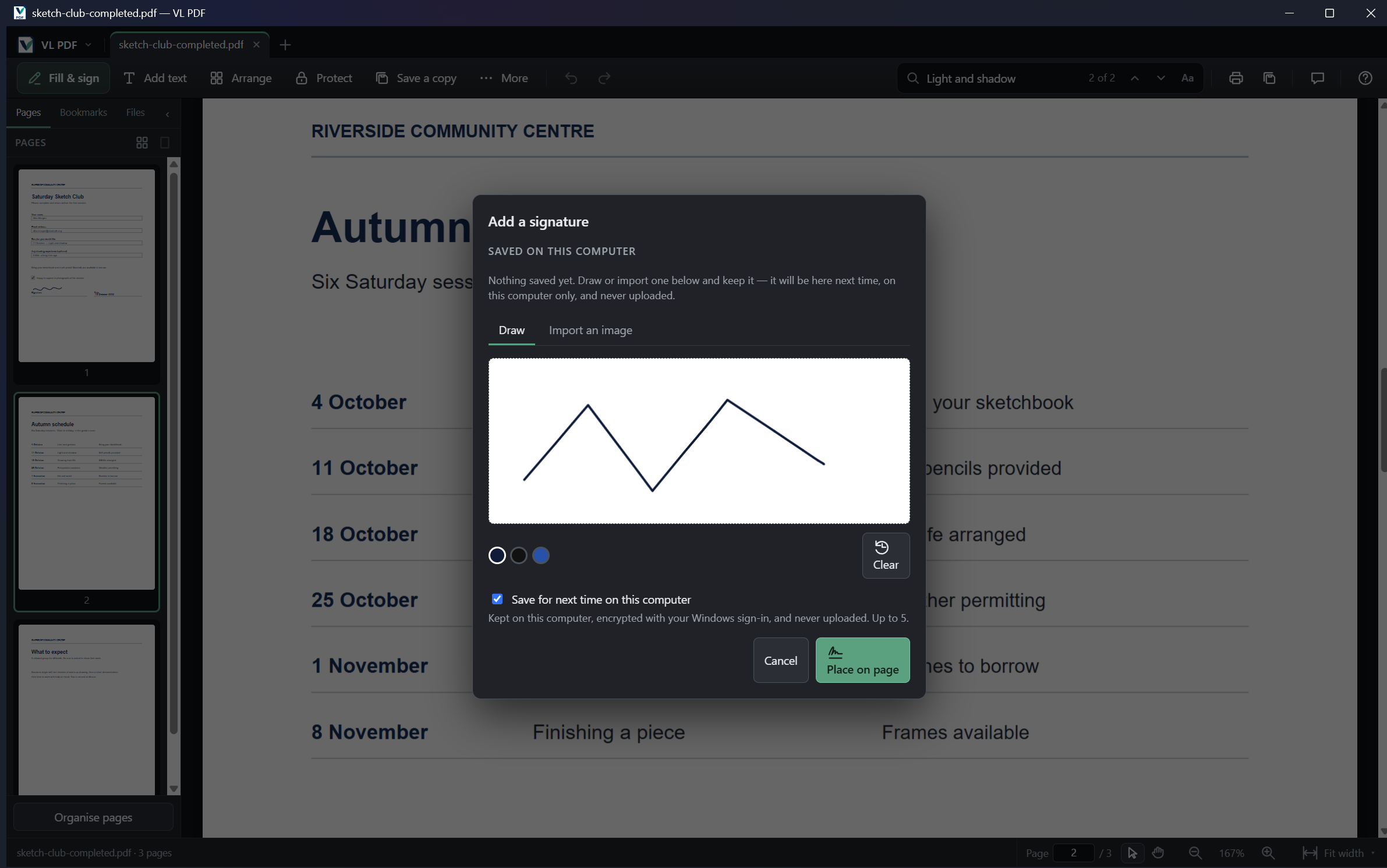
Drawing a sample signature, ready to place on the PDF. Select the image to inspect it.
Combine PDFs, move pages into place and extract just the pages you need to share.
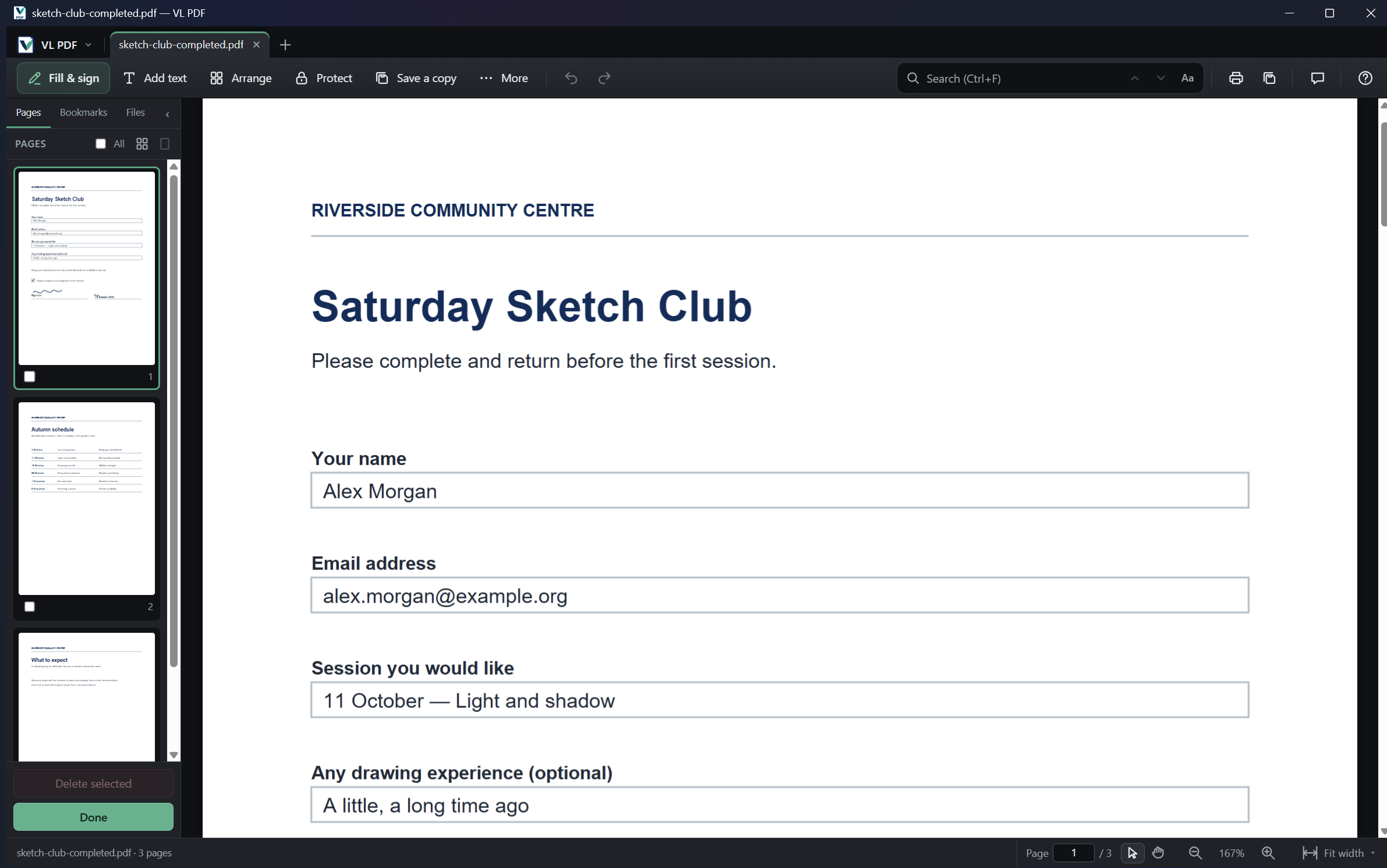
Page-organising controls beside a three-page sample document. Select the image to inspect it.
Run text recognition on your computer, then search, select and copy the recognised words.
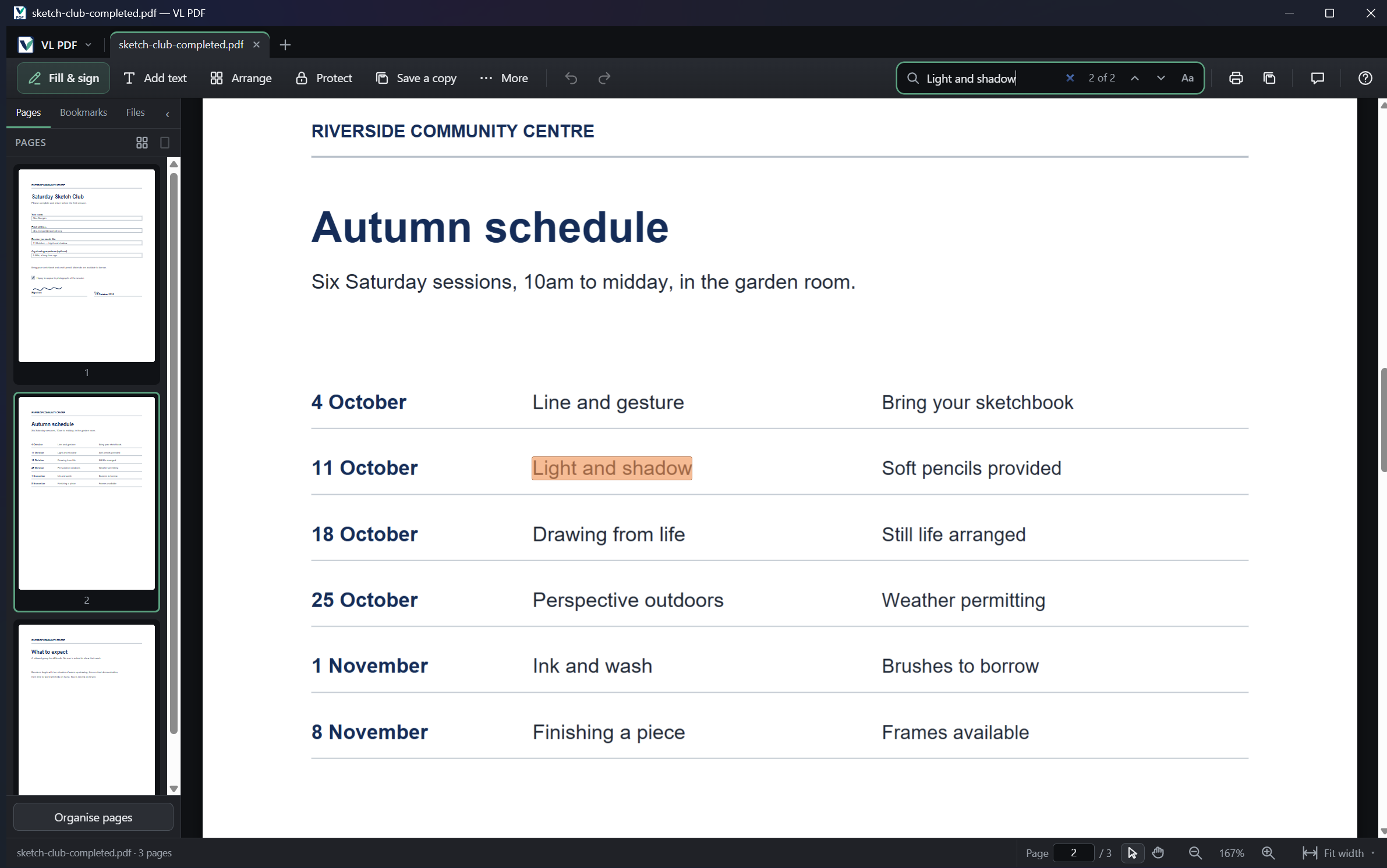
Search shown on a sample PDF with existing text. For scanned pages, run text recognition first.
ONE WORKSPACE, USEFUL TOOLS
From a quick annotation to a carefully assembled pack. Explore the local tools in the Windows preview.
Read, search and print. Keep several documents open in tabs, follow bookmarks and compare the words in two versions.
Add text, highlights, arrows and comments. Reply to review notes and keep the conversation with the document.
Merge, split, reorder, rotate and crop. Make a PDF from images, or export PDF pages as images.
Fill existing fields, create fillable fields and add a visible signature. Certificate signing is available for workflows that need it.
Compress files, add watermarks and password protection, or prepare an archival copy with PDF/A output.
Use local OCR to make scanned text searchable. Export extracted text when you need to work with the words elsewhere.
Adding text and annotations is supported. Rewriting a PDF’s existing text or images is not. Word export extracts text; it does not recreate the original page layout. Read the practical details
ON YOUR COMPUTER
Your PDFs stay on your computer when you use the local tools.
Fill, sign, organise and recognise text without uploading the document or creating an account. Save the result where you choose.
The app uses the internet for update checks and downloads. Optional cloud features are not offered as a live service here.
FOR YOUR WORK, AND YOUR WORKPLACE
Personal and self-employed use stays free. We are preparing a separate one-off licence for people working on behalf of an organisation.
For your own documents, studies and work as a self-employed individual, including work for your own clients.
One licence per named user for a specified desktop version, with an initial support period defined in the offer.
Organisational licensing is being prepared. Pricing and support terms will be published before purchase.
Ask about organisational licencesTAKE A CLOSER LOOK
The existing preview is for invited testers. It currently installs as Filekin Studio; the download page carries its build details and installation guidance.
Download for WindowsWindows 10 & 11, x64. The preview uses a test certificate, so Windows or your browser may show a warning. General release and final distribution terms are still being prepared.
Read the version, installation notes and preview conditions on the download page.
Start with a copy of a PDF. Try the job you actually need to do.
Look at the saved result before relying on it for your work.
A USEFUL PLACE TO START
Three practical guides. A clear way to get help.
A FEW PRACTICAL ANSWERS
What it does, who it is for, and where the boundaries are.
Personal and self-employed use remains free. Organisations need a licence for each named user. The organisational offer, price and support period are still being prepared; there is no checkout on this site.
That falls under organisational use, including on your own laptop. The proposed offer is a one-off named-user licence for a specified desktop version. An organisation should confirm the available licence and deployment terms before rolling it out to staff.
No account or document upload is needed for the local PDF tools. Those tools process files on your PC. Update checks and downloads use the internet. Cloud storage and online approvals are not offered as live services on this website.
You can add text boxes, fill form fields and annotate. Editing or reflowing the existing text and images in a PDF is not supported. Text export to Word is available, but it does not preserve complex layouts such as tables or columns.
The current desktop preview is for Windows 10 and 11 on x64 PCs. There is no Mac, mobile or browser PDF editor offered here. This website introduces the desktop application; it does not upload or process your documents.
You can draw or import a visible signature and place it on a PDF. Certificate-based PDF signing is a separate tool. A drawn signature is not a certificate signature, and neither feature is a blanket promise of legal acceptance for every document or jurisdiction.
VL PDF is the product name, used throughout the application. The captures on this site are from VL PDF 0.3.47. The invited-tester installer still carries the Filekin Studio name, which is the packaging identity an update matches on.
No. The organisational direction covers continued use of the specified version, with a defined initial support period. Later upgrades or extra help are optional. The final price, included support and terms will be published before purchase.
